How to Use Save States and Shaders in Emulators: A Beginner’s Guide
Two emulator features change the experience of old games on a modern PC more than almost anything else. Save states let you save anywhere, even in games that only let you save at a checkpoint. Shaders alter the look of the image, from sharp square pixels to the soft glow of an antique CRT TV. This guide shows how to use both and the blunders that can cost you progression.
Quick start in RetroArch: F2 to save a state, F4 to load it. Open Quick Menu → Shaders → Load Shader Preset to modify the look. Keep saving in-game too.
What Are Save States?
A save state is a snapshot of the entire emulated console at a point in time: memory, graphics, sound, and exactly where your character is standing. Loading it restores almost everything as it was, even the frame.
That is different from an in-game save, the save the game itself makes at a save point or via its menu. In-game saves are written as the original game intended to a virtual memory card or a cartridge save. The emulator creates save states; the game knows nothing of them.
Save states are great for rehearsing a tough monster, halting in a game with few save points, or taking a risky choice and going back. Use these in conjunction with in-game saves, not as a replacement. The troubleshooting section explains why.
How to Create and Load Save States in RetroArch
Menu names and keys in this guide come from RetroArch’s official documentation and can change between versions, so check your own menus if something looks different.
Using the keyboard
With a game running, RetroArch’s default keyboard hotkeys are:
| Action | Default key |
|---|---|
| Open the menu | F1 |
| Save state | F2 |
| Load state | F4 |
| Previous state slot | F6 |
| Next state slot | F7 |
Using the Quick Menu
- Start a game, then press F1 (or your controller’s menu button) to open the Quick Menu.
- Choose the State Slot you want to use. Each slot holds one save state.
- Select Save State. A message confirms the save.
- Later, open the Quick Menu again, pick the same slot, and select Load State.
Slots are basically different save files. Save to slot 0 for your main progress; save to slot 1 for a boss you’re rehearsing. There is also Undo Load State and Undo Save State in the Quick Menu if you accidentally pick the wrong one.
Changing the hotkeys
You can remap any shortcut (including to controller buttons) in Settings → Input → Hotkeys. If you set a key or button to Enable Hotkeys, you have to hold it down when you press a hotkey. That is beneficial on a controller where buttons are already occupied for playing, and for games that employ the complete keyboard.
What Are Emulator Shaders?
A shader is a little piece of software that runs on your graphics card, changing each frame before it is shown on your screen. Old consoles were designed for CRT televisions, which combined pixels in ways that designers relied on; thus, the same graphics can look harsh on a sharp current monitor. Shaders allow you to pick the look you want.
Common types include:
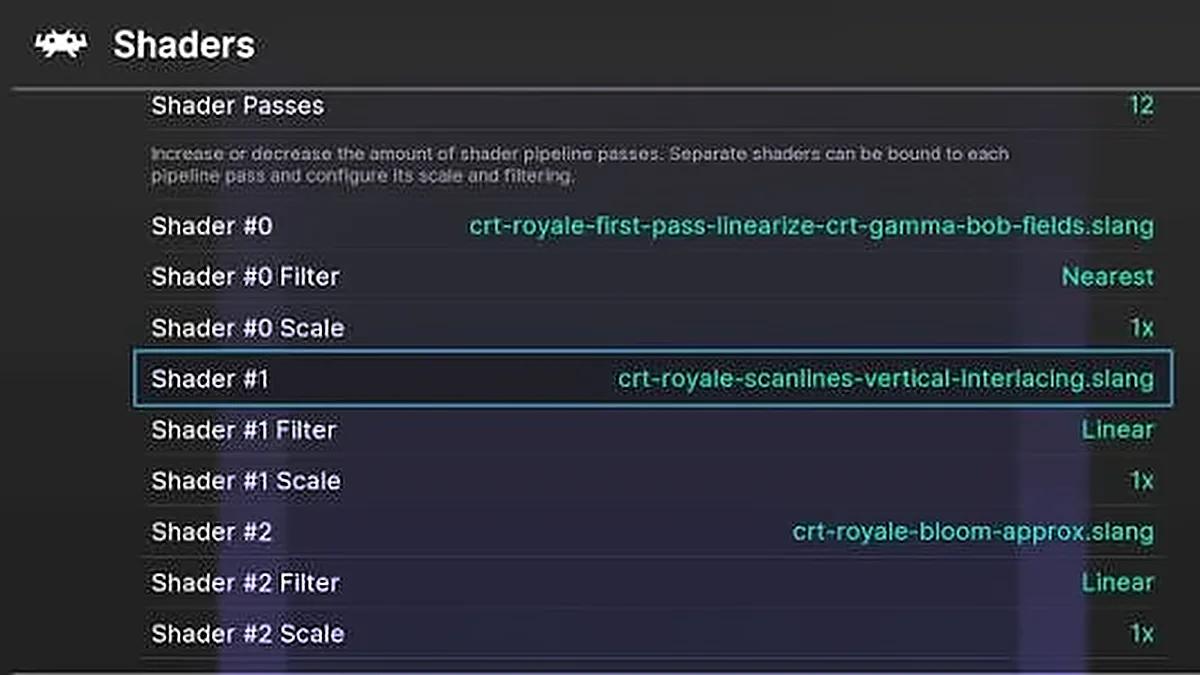
- CRT shaders imitate an old TV, with curved edges, glowing colors, and visible scanlines. Popular RetroArch packs include crt-geom and crt-royale.
- Scanline shaders add only the dark horizontal lines, a lighter version of the CRT look.
- Smoothing and scaling filters soften or reshape pixels when a small image is stretched to a large screen.
- Handheld shaders imitate the screens of portable consoles like the Game Boy.
No shader is “best”. Results depend on the game, your monitor, and your taste, and sharp, unfiltered pixels are a fine choice too.
How to Enable Shaders in RetroArch
- Start a game and open the Quick Menu.
- Go to Shaders → Load Shader Preset.
- Open a folder such as CRT or Scanlines and pick a preset file. The effect appears right away.
- To fine-tune it, open Shader Parameters. Changes preview live. RetroArch’s official shader guide explains the advanced options.
- To keep it, go to Shaders → Save and choose how widely it applies.
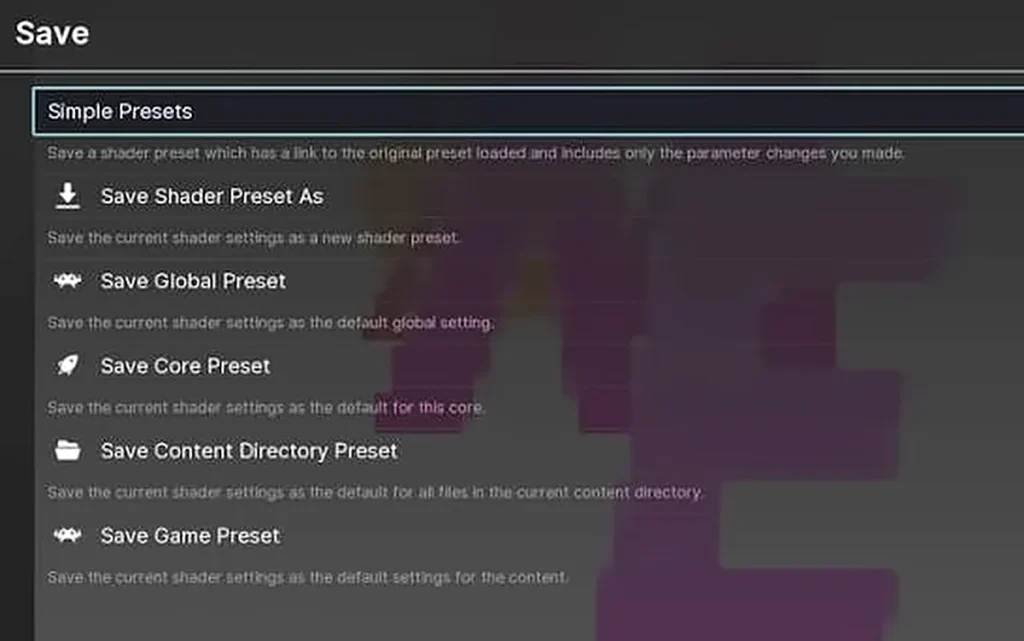
The save options decide where your shader is used:
- Global Preset: every game.
- Core Preset: every game using that core, for example, all your SNES games.
- Content Directory Preset: every game in the same folder.
- Game Preset: this game only.
The most specific wins, hence a Game Preset beats a Global Preset. If you load a shader and don’t save it, the shader will only be available until you exit the game.
If the shader list is empty
RetroArch works with 3 shader formats. Not all of them function with each video driver:
- Slang (.slangp): recommended. Works with Vulkan, Direct3D 10/11/12, OpenGL Core, and Metal.
- GLSL (.glslp): for OpenGL, including many phones and tablets.
- Cg (.cgp): an old, deprecated format.
If no presets appear, update them via Main Menu -> Online Updater and choose the shader update corresponding to your driver, e.g., Update Slang Shaders. You can view or modify your driver under Settings → Drivers → Video. To change it, you have to restart RetroArch.
Save States and Shaders in Standalone Emulators
Standalone emulators have their own shortcuts, and RetroArch’s F2 and F4 won’t work inside them. These are the default save-state keys for three common ones:
| Action | Dolphin (GameCube / Wii) | mGBA (Game Boy Advance) | PCSX2 (PlayStation 2) |
|---|---|---|---|
| Save state | Shift + F1 to F8 (slots 1–8) | Shift + F1 to F9 (slots 1–9) | F1 (current slot) |
| Load state | F1 to F8 (slots 1–8) | F1 to F9 (slots 1–9) | F3 (current slot) |
| Change slot | Not needed: each key is its own slot | Not needed: each key is its own slot | F2 next, Shift + F2 previous |
| Extra | Slots 9 and 10 have no default key; use the Emulation menu | Shift + F10 / F10 open a save and load menu with thumbnails |
Notice the trap: In Dolphin and mGBA, F1 loads a state. In PCSX2, F1 saves one. However, pressing the wrong key can overwrite progress, so check the hotkey settings of any emulator before you rely on it. All three allow you to modify these keys.
Save states are more consistent than shader support. Some stand-alone emulators feature post-processing effects, some will allow you to drop in your own custom shader files, while some only give you basic filtering – check each emulator’s graphics options.
Not sure which approach suits you? See our comparison of RetroArch vs. standalone emulators.
Common Mistakes and Troubleshooting
Relying only on save states
This is the most typical way to lose your progress. Save states can break following an emulator update or core change, as the snapshot is dependent on how that precise version emulates the console. The PPSSPP documentation, for example, cautions that states saved in development builds could not load in stable builds. A regular save in-game is much more likely to persist; therefore, save in-game as often as the game lets you.
Loading an old state, then saving in-game
Some games store their own history in their save files. If you load a save state that was made before your last in-game save, and then save again, the game can get confused and refuse to load or save. PPSSPP’s guide says not to save in-game after loading a state that is older than your last true save.
Moving or deleting files
Save states are just normal files in a folder of the emulator’s choosing. It’s located in RetroArch under Settings → Directory. If you move the game file, change its name, or change folders, RetroArch may be looking in the wrong spot. Back up essential saves and save states much like you back up your own games.
Choosing a shader that’s too demanding
Advanced CRT shaders that need multiple passes per frame might create slowdown or crackling audio on a laptop, older PC or phone. Choose a lighter scanline preset or disable shaders.
Frequently Asked Questions
Are save states better than normal game saves?
They’re more convenient, not better. Use save states for fast practice and breaks, but rely on regular in-game saves for true advancement.
Can emulator updates break save states?
Yes, so make an in-game save before updating. Our roundup of the latest emulator updates covers what recent versions changed.
Do shaders affect performance?
They can. Simple scanline shaders are light, while multi-pass CRT shaders need a capable graphics card.
Can I use shaders in every emulator?
No. RetroArch has the largest shader library, but standalone emulators vary, and some offer only basic filters.
How do I change save-state hotkeys?
In RetroArch, go to Settings → Input → Hotkeys. In standalone emulators, look for a Hotkeys or Controls section in the settings. If you play with a gamepad, our guide to the best controllers for emulation can help you pick one with spare buttons for shortcuts.