Best Controllers for Emulation: USB, Bluetooth & Retro
The best controllers for emulation are not necessarily the newest or the most expensive. You can emulate pretty much any ancient system on a current PC, but whether a game feels correct or just playable largely depends on the controller in your hands. A mushy D-pad can ruin a platformer, an awkward layout turns N64 camera controls into guesswork, and a missing analog trigger changes how some GameCube games play.
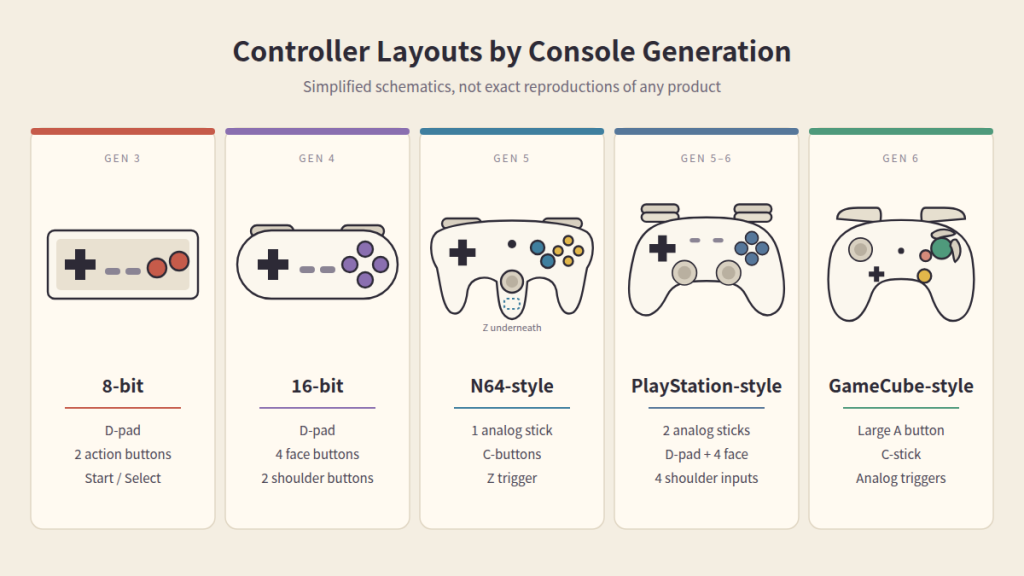
So it makes sense to match the controller to the systems you really play. Each console generation was developed around its unique controller. An 8-bit platformer wants a precise D-pad and two buttons. A PS2 action game expects dual analog sticks and four shoulder inputs. An analogue trigger can be used by a GameCube title.
This guide explains which controller features matter for emulation, how USB and Bluetooth compare, and how to match a controller style to the systems you actually play. It also covers setup and troubleshooting.
What Makes a Controller Good for Emulation?
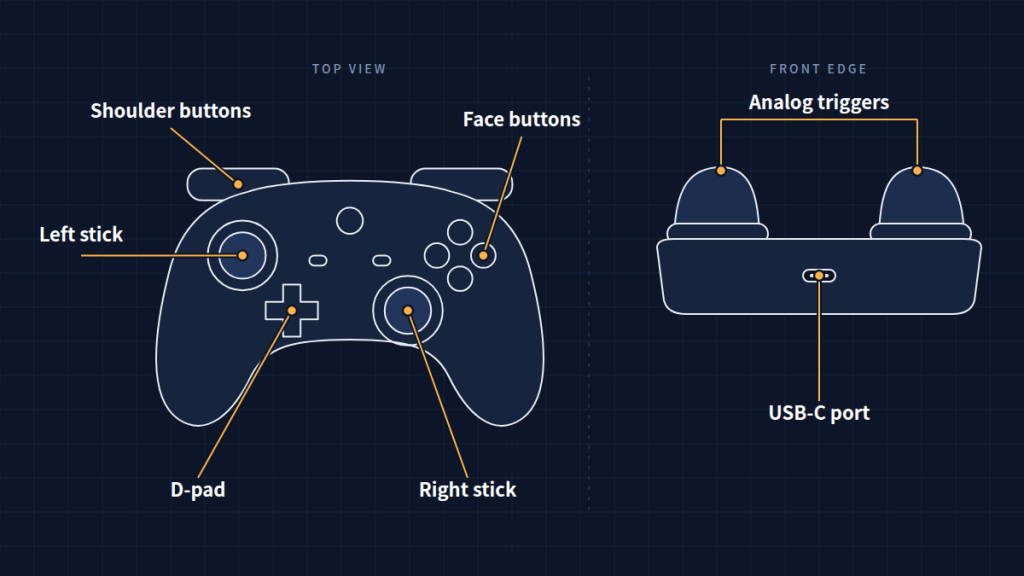
D-pad quality. For anything before the mid-’90s, the D-pad is the main input. You want to find a pad that registers clean directional presses without drifting into diagonals. Floating or disc-style D-pads found on some modern gamepads are the most common complaint among retro players.
Analog stick accuracy. After the N64, consoles have used analogue control. Sticks with smooth travel and small, adjustable dead zones make 3D platformers and shooters easier to control.
Button layout. The closer the layout is to the original console, the less remapping you’ll do. This matters most for the N64 and GameCube, whose controllers were unusual.
Trigger design. The GameCube had analogue triggers that clicked when pressed all the way down. PS2 face buttons were pressure-sensitive. Most modern controllers can’t fully replicate either, so it helps to know what a game expects.
Input latency. Emulation already adds some processing delay. You’ll notice most in rhythm games, fighters, and rapid platformers. A controller with a responsive connection helps keep the total down.
Connection type. Wired and wireless controllers both work well for emulation. Which one suits you depends on your setup, and there’s a full comparison further down.
XInput and DirectInput support. On Windows, XInput is the standard, used by Xbox controllers and supported by most PC software without any additional configuration. DirectInput is an older API that many emulators still support, sometimes with manual mapping. Controllers that can switch between the two modes are especially flexible.
Build quality and ergonomics. Long sessions expose cheap buttons and cramped grips quickly. Lighting or extra features are less important than the durability of face buttons and a shape that fits your hands.
Configuration flexibility. Layout differences between systems can be smoothed over with remappable buttons, mode switching, and companion software.
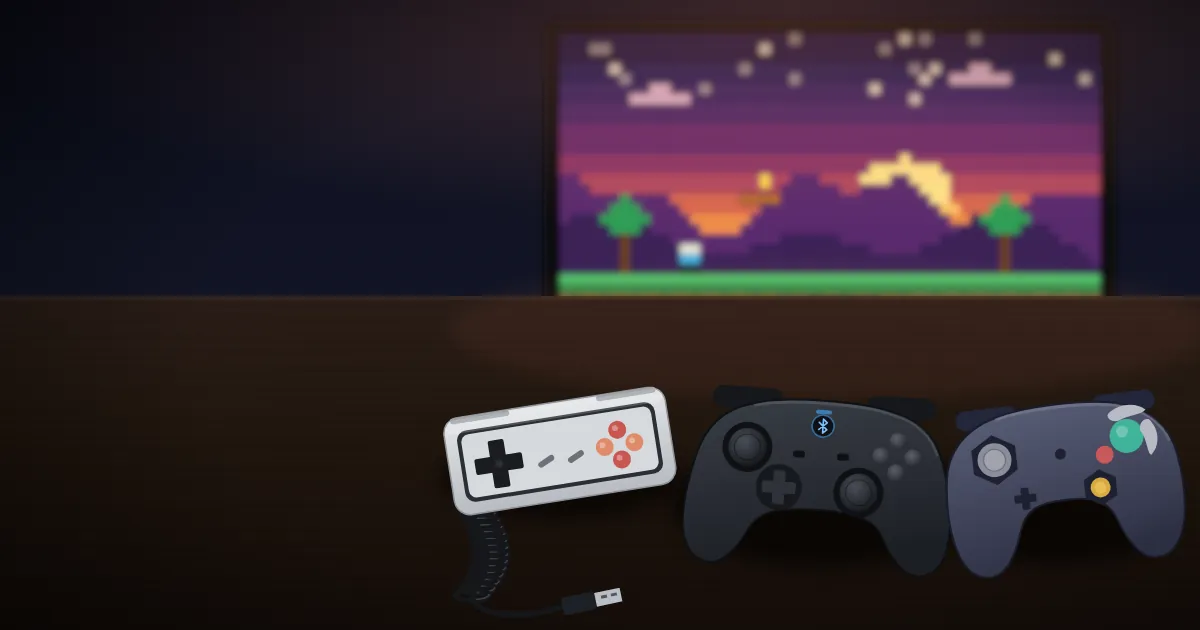
Best Controllers for Emulation by Category
The table below pairs categories with what matters, rather than announcing single victors. Where examples are cited, they are established choices for further research. Please check the current specs and compatibility before purchasing, since hardware revisions and firmware can change.
| Category | Best suited for | What to look for | Examples worth considering |
|---|---|---|---|
| Best overall | Mixed emulation | Versatile layout and broad PC compatibility | Xbox Wireless Controller (native XInput on Windows; USB and Bluetooth on current models) |
| Best budget | Beginners | Reliable USB connection and good controls | A wired, XInput-compatible gamepad from an established brand |
| Best retro-style | 8-bit / 16-bit systems | Excellent D-pad and simple button layout | 8BitDo’s SNES-style controllers, which offer multiple input modes on many models |
| Best Bluetooth | Wireless setups | Stable connection and good compatibility | Controllers with official PC support and firmware updates |
| Best USB | Low-latency wired setups | Reliable wired input | Any well-built wired XInput controller |
| Best Nintendo-style | NES / SNES / N64 / GameCube-style emulation | Console-appropriate button layout | Official GameCube controller with a compatible USB adapter (for Dolphin) |
| Best PlayStation-style | PS1 / PS2-style emulation | Dual analog sticks and familiar shoulder layout | Sony DualShock 4 or DualSense (support varies by emulator; Steam Input can help) |
These examples are the kind of controllers that the emulation community utilises. These are beginning points for your own research, not rankings.
Best Controller Styles for Different Console Generations
NES and Other 8-Bit Systems
NES games used a D-pad, two action buttons, Start,t and Select. Most controllers have enough inputs, so the D-pad is the big one. Precision platformers punish inaccurate diagonals;s, therefore, a controller with a sharp, well-defined cross is often the finest controller for a NES emulator. Many players prefer wired retro-style pads for this: they’re simple, comfortable for the era’s games, and quick to set up.
SNES and 16-Bit Systems
The SNES added four face buttons in a diamond and two shoulder buttons. A retro-style SNES layout translates naturally to games created for it, such as fighters that require all six buttons. Find a nice D-pad, a face-button diamond in the traditional place, and responsive shoulder buttons. Other gamepads work too, but you may have to remap the locations of Nintendo’s A/B/X/Y buttons, which are not in the same spot as Xbox’s.
Nintendo 64
The N64 controller was a three-prong design with one analogue stick, a Z trigger on the underside, and four yellow C-buttons typically used to control the camera. No standard modern gamepad reproduces this exactly. The common approach is to map the C-buttons to the right analog stick and Z to a trigger. This works fine for a lot of games, but games that use the C-buttons as separate action buttons can feel clunky.
When choosing the best controller for an N64 emulator, prioritize a good analog stick and enough well-placed buttons. N64-style copies exist, but check PC compatibility carefully before buying one.
PlayStation and PlayStation 2
PlayStation-style controllers are the easiest to match with modern electronics. Almost one-to-one with today’s gamepads are dual analogue sticks, a D-pad, four face buttons, and four shoulder inputs.
One PS2 detail: the DualShock 2’s face buttons were pressure-sensitive, and a small number of games use this. Most current controllers include digital face buttons. PCSX2 offers a pressure modifier binding that can help in certain circumstances. For most of the library, any good dual-analog controller is a strong choice for a PS2 emulator.
GameCube and Wii
The GameCube controller had a huge A button, a distinctive face-button configuration, a C-stick, and analog triggers. Some games require partial trigger pushes, which a digital trigger can’t imitate.
Dolphin is the main GameCube and Wii emulator. Dolphin has its own controller settings with support for regular gamepads. It also supports original GameCube controllers with the official Nintendo GameCube adapter for Wii U and compatible third-party adapters. On Windows,s this means installing a WinUSB driver,er which is described in the Dolphin documentation. For the most authentic controller for Dolphin, an original pad with an adapter is hard to top. Wii emulation adds motion controls and Wii Remote pairing, which is a different topic.
Modern and Mixed-System Emulation
If you use a multi-system frontend like RetroArch or switch between several standalone emulators, a single XInput-compatible modern controller is usually the most practical choice. It’s easily recognisable, compatible with most emulators, and covers systems from the PS1 era and up quite nicely. Some gamers link it with a second retro-style pad for 8-bit and 16-bit games.
USB vs Bluetooth Controllers for Emulation
| Feature | USB | Bluetooth |
|---|---|---|
| Setup | Usually simple | Requires pairing |
| Cable | Required | Wireless |
| Portability | Lower | Higher |
| Battery | Usually unnecessary | Usually required |
| Connection | Wired | Wireless |
| Best for | Desktop setups | Living-room/mobile setups |
Both connection types are good for emulation purposes. A USB controller eliminates the need for pairing, energy management, and wireless interference from the equation, making troubleshooting easier. The best USB controller for emulation is chosen mostly for the simplicity when playing at a desk.
Bluetooth is preferable for PC couch play hooked up to a TV, laptops, and handheld PCs. Most games feel responsive with a decent Bluetooth controller that has a strong PC implementation. Wireless performance might vary significantly, depending on the controller, Bluetooth adapter, and surroundings. If a wireless configuration feels off, try a wired connection to narrow down the culprit. Many controllers allow both,h and you can swap between them.
How to Choose the Right Controller for Your Emulator
Mostly NES/SNES: Emphasise D-pad quality. Vintage-style controllers are often the best controllers for vintage gaming. A retro-style controller is the most natural fit.
Mostly N64: Prefer an accurate analogue stick and layout that accommodates C-button mapping well.
Mostly PS1/PS2: Prioritize dual analog sticks and four comfortable shoulder buttons. A PlayStation-style or Xbox-style controller will both work.
Mostly GameCube: Think an original GameCube controller with a supported adapter, or a gamepad with analogue triggers and a comfortable layout.
Mixed emulation: A versatile modern controller with broad PC compatibility is usually the simplest choice.
Also verify what operating system you use, whether your emulators support the controller natively, and if you’re okay remapping inputs.
How to Configure a Controller for Emulators
The exact menus vary from emulator to emulator, but the process is similar everywhere:
- Connect the controller via USB, or pair it through your OS’s Bluetooth settings.
- Confirm the OS detects it. On Windows, the Game Controllers panel (search for “joy.cpl”) can show whether inputs register.
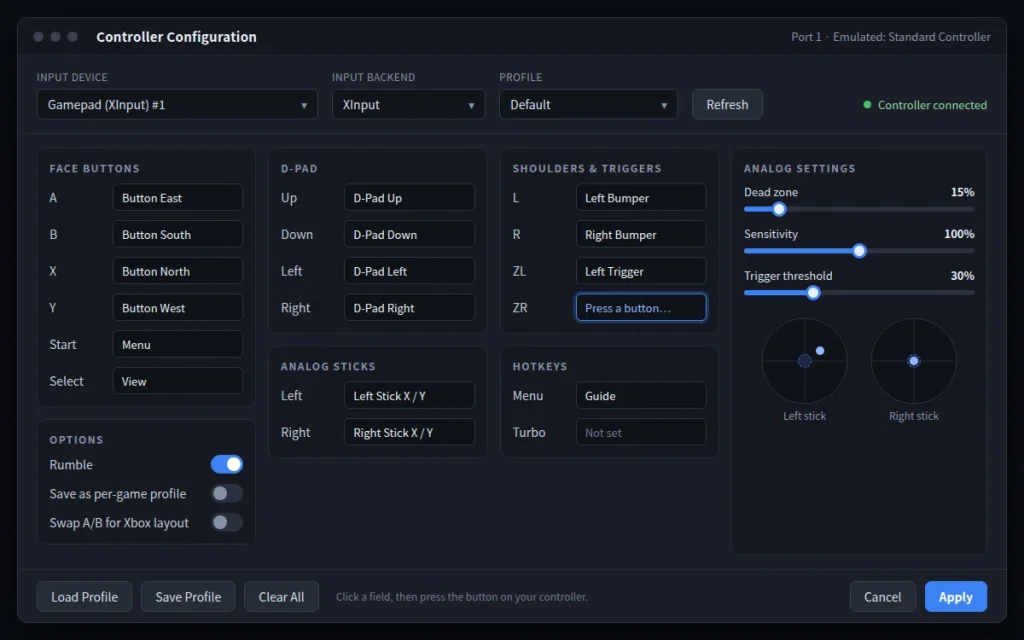
- Open the emulator’s input settings. These are generally referred to as Inputs or Controls.
- Select the input device. Some emulators will list the same controller under many APIs (XInput, DInput, SDL, etc.) Choose the one that works best.
- Map the buttons to the emulated console’s layout.
- Test the analog sticks and triggers and adjust dead zones or sensitivity if needed.
- Save the configuration. Many emulators provide per-game profiles, which help for games with unique controls.
Common Controller Problems When Using Emulators
Controller not detected
Check the USB cable and port, check Bluetooth pairing, update drivers or firmware, and check that the emulator is set to the correct input device.
Buttons mapped incorrectly
Open the emulator’s controller mapping and remap the inputs that are affected. This is often because Nintendo and Xbox put A/B/X/Y in different spots.
Analog stick not working correctly
Make sure to check your OS calibration and dead zone settings in the emulator. A dead zone that’s too large feels unresponsive, and one that’s too small can cause drift.
Bluetooth controller disconnecting
Check the battery level, re-pair the controller, move closer to the receiver, minimise interference from other wireless devices, and check your OS’s Bluetooth power-saving settings.
Controller works in Windows but not the emulator
The emulator may be utilising a different input API than the one your controller exposes. Try switching the input backend in the emulator’s settings, change the controller’s mode if it supports XInput/DInput switching, or use a translation layer such as Steam Input. Then manually map the controls.
Frequently Asked Questions
What are the best controllers for emulation on PC?
For the majority, a solid XInput-compatible controller will cover the vast majority of emulators. Often, players who like 8-bit, 16-bit games install a retro-style pad with a big D-pad.
Can I use a PlayStation controller with PC emulators?
Yes, in most cases. Many emulators have native support for the DualShock 4 and DualSense, and Steam Input can help out those that don’t.
What is the best controller for the Dolphin emulator?
For authenticity, an original GameCube controller with a suitable USB adapter. Any controller with good analogue sticks will do for convenience, with analogue triggers being preferred.
Is Bluetooth too laggy for emulation?
Not always so. Many players use Bluetooth without difficulties. If latency seems high, test a wired connection to compare.
Final Thoughts
No one controller works perfectly for all systems. Decades’ worth of emulated gear. The practical answer is to match the controller to the games you play the most: a sturdy D-pad for retro games, solid analogue sticks for 3D-era consoles, and broad compatibility if you bounce between platforms. With the right controller choice and a few minutes of work, you are able to set up your emulated games to feel a lot more like they were supposed to be played. If you’re expanding your collection, our guide on how to legally back up game cartridges and discs explains how to make copies of the games you already own.