So how do you go about setting up emulation on a Windows PC? Should you install RetroArch and its cores, or install specific standalone emulators? It’s one of the first decisions any new emulation setup has to make. The answer depends on what consoles you care about.
The question exists because there are two alternative approaches to establish an emulation setup. RetroArch is a frontend. One software that loads small emulation modules called libretro cores. One or more for each system. Standalone emulators are standalone software, like Dolphin, DuckStation, PCSX2, and PPSSPP. They are designed for a certain platform and have their own interface and settings.
In the RetroArch vs. standalone emulators debate, no one wins all the time. RetroArch is great because it brings dozens of systems together into a single controller setup and library. Standalone emulators tend to offer deeper control over the specific console they target. In this guide, we will go over where each approach shines, where it falls flat, and how many veteran players wind up using both.
RetroArch vs. Standalone Emulators: What’s the Difference?
RetroArch is not an emulator. It is a frontend using the libretro API. The emulation itself is handled by a core, a module that RetroArch loads for a given system. RetroArch has it all. Menus, controller settings, playlists, shaders, save-state handling, netplay, RetroAchievements, recording, and streaming. It runs on Windows, Linux, macOS, Android, and many other platforms, and its settings work the same way whatever system you’re playin ong.
A standalone emulator is a complete application for one platform or family of platforms. Dolphin for GameCube and Wi , DuckStation for PlayStation 1, PCSX2 for PlayStation 2, and PPSSPP for PSP . Each one has its own interface, its own configuration and update procedure, and the developers are able to build features around how that particular console works.
| Feature | RetroArch | Standalone Emulators |
|---|---|---|
| What it is | A frontend that loads libretro cores for different systems | A complete emulator application designed for a specific platform or system family |
| Systems covered | Many systems through different cores | Usually one platform or system family per emulator |
| Settings | Centralized settings with additional core- and game-specific options | Separate settings and configuration for each emulator |
| Interface | Consistent interface across supported systems | Different interface depending on the emulator |
| Updates | RetroArch and individual cores can be updated through its interface | Each emulator is updated separately |
| Controller setup | Centralized controller configuration with profiles and remapping options | Controller configuration varies between emulators |
| Graphics options | Unified graphics settings plus core-specific options | Platform-specific graphics and rendering options |
| Shaders | Extensive shader support, including CRT-style effects | Support varies by emulator |
| Save states | Supported by many cores | Usually supported, but features vary by emulator |
| Game library | Playlists, scanning, thumbnails, favorites, and centralized library management | Usually managed separately within each emulator |
| Customization | Highly customizable frontend, controls, shaders, and per-game settings | Often provides deeper platform-specific configuration |
| Setup experience | Convenient for multiple systems, but can require learning cores and settings | Often straightforward for one dedicated emulator, but requires separate programs for different systems |
| Performance | Depends on the selected core, game, settings, and hardware | Depends on the emulator, game, settings, and hardware |
| Platform-specific features | Features depend on the selected core | Often provides features specifically designed for the target platform |
| Best suited for | Users who want a unified multi-system emulation setup | Users who prefer dedicated tools with platform-specific controls and features |
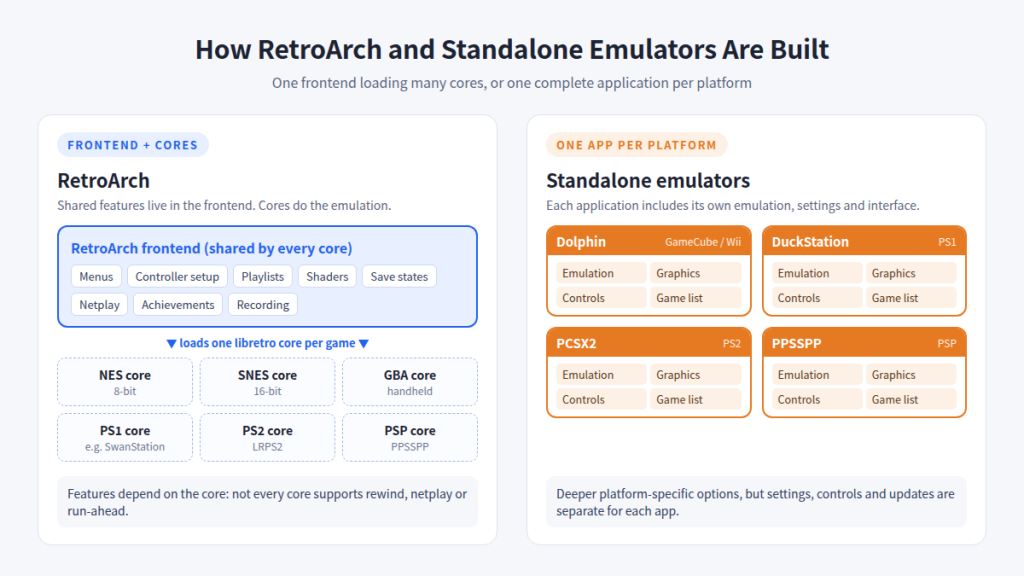
Standalone cores and emulators can exchange code or history. SwanStation is a derivative of DuckStation, while the LRPS2 core is based on PCSX2. But you can’t assume they are using the same version, features, settings, performance,e or compatibility.
What Is RetroArch?
RetroArch’s architecture separates the emulator from the rest of it. A core just has to deal with the emulation itself: running the game code and outputting video, audio, I/O,io and input requests. For every core, RetroArch does everything else the same.
In practice, you get:
- A core updater/downloader. The Online Updater installs and updates cores in the application.
- Database scanning and playlists. RetroArch scans your game files against its database, and then arranges them into per-system playlists with thumbnails.
- Unified controller setup. Recognized gamepads are configured automatically,y and one set of mappings and hotkeys works everywhere.
- Shaders. Shaders are applied to the output of any core, CRT, LCD, and scaling.
- Save states, rewind, and run-ahead. They depend on the core, since they require fast and reliable save states.
- Netplay (mainly older computers, where the emulation is totally predictable,e works best with cores)
- RetroAchievements for supported cores/games
- Recording and streaming built-in.
- Per-core, per-content-directory, and per-game overrides, so one system or game can have different settings without impacting the rest.
These functionalities aren’t available on every core. Every core has a support chart that is included in the libretro documentation. For example, the PPSSPP core enables save states, but not rewind. In general, the older and simpler the system, the more of RetroArch’s capabilities you will be able to use.
What Are Standalone Emulators?
Standalone emulators are built by teams that focus on one platform:
- Dolphin for GameCube and Wii
- DuckStation for PlayStation 1
- PCSX2 for PlayStation 2
- PPSSPP for PlayStation Portable
You can see that emphasis in the details. A dedicated project can disclose settings that only make sense for one console, retain its own database of game-specific updates, build debugging tools around that hardware, and design its interface for the settings users actually need. Take, for example, Dolphin’s setup, which is based around GameCube controllers, Wii Remotes,s and the Wii’s peculiar technology. PCSX2 has per-game attributes because there are a lot of PS2 games that need tweaking on a per-game basis.
The price isthat theyy share nothing between them. Each emulator has its own controller mapping, folders, hotkeys, and update schedule, and you have to master each interface separately.
Performance: Is RetroArch Faster Than Standalone Emulators?
There is no general solution,n and anyone who says otherwise is oversimplifying. Whether RetroArch is in the loop or not doesn’t matter;r, it relies on the core/emulator that runs the game. The frontend of RetroArch isn’t that heavy. The core handles the heavy lifting.
What really drives performance:
- The core or emulator and its version. Two PS1 cores can behave very differently when running the same game, and a core might be months behind or ahead of its standalone counterpart.
- The game. Some titles stress the original hardware more than others.
- Your CPU, GPU, and RAM. Most emulation is CPU-bound. What this means is that it is dependent on how fast your CPU can emulate the console CPU. Raising the internal resolution largely adds GPU burden. If a game slows down on a PS2 at native resolution, a faster graphics card probably won’t help. It probably does, if it is only slowing down at 4x resolution.
- The graphics backend. Depending on your GPU and driver, Vulkan, Direct3D 11/12, and OpenGL might function differently. RetroArch has a global video driver configuration, and hardware-rendered cores require a driver they support. For standalone emulators,s you can select the backend from their own graphics menu. Software rendering is more accurate for some systems but relies entirely on the CPU.
- Resolution, shaders and accuracy settings. Heavy CRT shaders at 4K, or accurate but demanding settings, cost performance no matter what programme you employ.
- Synchronization and frame pacing. VSync settings, refresh-rate incompatibilities and audio sync all affect how smooth a game feels, even when the frame rate counter looks good.
- Operating system, drivers,rs and game-specific compatibility.
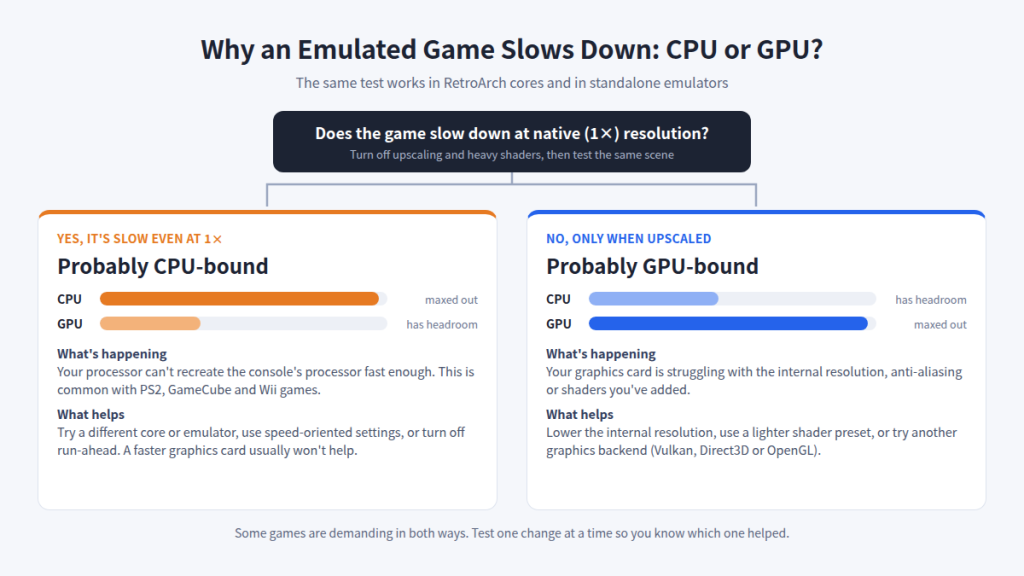
The practical takeaway is that the same game can behave differently between a core and its standalone counterpart. If a game works poorly in one, try it in the other before blaming your hardware.
Input Latency and Controller Support
One of RetroArch’s greatest assets is its handling of controllers. Plug in an XInput controller, DirectInput pad, or USB or Bluetooth gamepad, and it will be recognised by autoconfiguration normally. Each core then utilises the same abstract controller, dubbed the RetroPad, so mappings, hotkeys, rumble (where the core supports it), and multiple-controller setups function the same throughout every system. That kind of consistency saves a whole lot of time for a person with 10 consoles.
RetroArch also contains the most mature tools for reducing lag. Run-ahead runs the emulation a frame or more forward and rolls back so the game responds to your button presses sooner. It requires dependable save states and additional CPU time; therefore, it is more suitable for 8-bit and 16-bit cores than for demanding 3D ones.
Standalone emulators are great for platform-specific inputs. Dolphin supports the original GameCube controllers via a USB adapter and can connect actual Wii Remotes. PCSX2 features some options particular to the PS2, such as pressure-sensitive buttons. DuckStation has native support for the various PS1 controller varieties. Some standalone emulators (including DuckStation) feature their own run-ahead option.
There is no controller or input system that is best in all cases. It depends on how much you care about a consistent setup vs console particular accuracy.
Graphics Quality and Upscaling
RetroArch does very well with 2D vintage systems. The shader package contains CRT simulation, LCD grids, and smoothing filters. The 3d cores add their own graphics options on top of the global options for scaling, aspect ratio, integer scaling,g and filtering.
Standalone emulators generally offer more for 3D-era enhancement:
- DuckStation: Hardware renderer on multiple APIs, resolution upscaling, texture filtering, widescreen, and PGXP that minimises the shaky polygons and warped textures common to the original PS1 graphics.
- PCSX2: hardware renderers (Vulkan, Direct3D 11/12, OpenGL) with a software renderer, custom upscaling, and per-game parameters for the many titles that require individual visual modifications.
- Dolphin: GameCube and Wii-specific options for internal resolution, anti-aliasing, widescreen hacks, texture handling,ng and shader compilation (including ubershaders to reduce stutter).
- PPSSPP: texture scaling, resolution scaling, filtering, and post-processing shaders.
Not all of these characteristics are common to all emulators, and a core version may not have all the functionality of its standalone version.
Ease of Setup
RetroArch workflow:
- Install RetroArch
- Download cores with the Online Updater
- Set your system/BIOS, saves,ves and content folders
- Configure your controller (often automatic)
- Scan your game folders
- Check the playlists and add thumbnails
- Adjust core options and per-game overrides
Standalone workflow:
- Install the emulator
- Set your game and save folders
- Map your controller
- Choose a graphics backend and settings
- Add BIOS/system files if the emulator needs them (PCSX2 and DuckStation do; PPSSPP doesn’t)
- Add your games
- Adjust per-game settings
For one or two systems, a standalone emulator can feel simpler: fewer menus, and the settings match the console you’re looking at. With about five systems and more, the single setup of RetroArch begins to pay dividends, because controllers, folders and hotkeys are configured once, instead of five times.
Game Library Management
RetroArch scans your game folders, matches them against its database and automatically generates per-system playlists with box art, title screens and snapshots as thumbnails. It includes Favourites and History and lets you explore the complete collection from the couch using a controller. For a vast collection across several platforms, it’s a real benefit to have it all in one place.
Standalone emulators have a game list for the particular platform. Dolphin, DuckStation, PCSX2 and PPSSPP all feature usable game lists with cover art support, but you have to switch between programmes to access them. Some players have a separate launcher that sits in front of all their emulators to get around this; others just accept switching programmes.
RetroArch vs Dolphin
The standalone Dolphin remains the reference implementation for GameCube and Wii. Its settings revolve around the platform: detailed graphics options, GameCube adapter support, real Wii Remote connection, per-game settings, and a very large compatibility effort.
In late 2025, the libretro Dolphin core was updated to a much newer Dolphin codebase, closing a gap that had been open for several years. Differences exist, nevertheless. Libretro forum notes that the layout of configuration and game settings is different from standalone Dolphin, and several choices work differently inside RetroArch; troubleshooting tips intended for standalone Dolphin don’t necessarily apply to it.
Choose the core if you want GameCube in the same library and controller setup as everything else. Choose standalone Dolphin if you rely on Wii Remotes, the GameCube adapter, or Dolphin’s own instructions and per-game updates.
RetroArch vs DuckStation
DuckStation has no official core. The primary PS1 choices in RetroArch include SwanStation (a DuckStation fork), Beetle PSX / Beetle PSX HW (based on Mednafen and known for its accuracy), and PCSX ReARMed (lightweight). Standalone DuckStation has also advanced in its own development since those forks were made. Its license was updated in 2024 to one that prohibits commercial use and derivative works.
Standalone DuckStation supports PGXP, upscaling, texture filtering, widescreen options, per-game settings, and a neatly organised UI created exclusively for PS1. The RetroArch cores bring PS1-level upgrades, plus RetroArch’s shaders, run-ahead, a nd unified library. Compatibility varies from core to core, so if anything fails in one, try another. All of these alternatives, standalone or core, require a PS1 BIOS dumped from your own console.
RetroArch vs PCSX2
PS2 emulation is difficult. The console’s weird architecture is CPU-heavy, and many games require separate modifications. The standalone PCSX2 has per-game properties, an automatic database of game fixes, numerous hardware renderers, a software renderer for accuracy-sensitive games, and full logs for troubleshooting.
RetroArch’s current PS2 core is LRPS2, released in January 2025. It’s a substantially updated PCSX2 created for libretro with built-in game patches and a new Vulkan compute renderer called paraLLEl-GS. It supports Vulkan, Direct3D 11/12, and OpenGL.
It’s a good choice if you want PS2 in RetroArch. However,r its settings and behaviour are not the same as current standalone PCSX2; therefore, guides developed for one do not transfer immediately to the other. Both need a PS2 BIOS from your own console. For heavier games or intensive debugging, it is usually easier to work in standalone PCSX2.
RetroArch vs PPSSPP
The two approaches are most similar at the PSP. The PPSSPP core is based on the PPSSPP project itself, needs no BIOS, and performs well even on minimal hardware. Both versions provide functionality for resolution scaling, texture scaling, filtering, and save states.
PPSSPP standalone has a few benefits: its entire PSP-specific menus, all the post-processing options, and ad hoc multiplayer settings in their original form. The libretro documentation mentions that rewind and RetroArch netplay are not supported on the core, although it is able to connect to the same online multiplayer servers as standalone PPSSPP via its core choices. You’ll find both versions on just about every platform, so moving your PSP setup from one device to another is effortless.
Accuracy vs Performance
Four things often get lumped together:
- Accuracy: how closely the emulator reproduces the original hardware’s behaviour.
- Speed: how fast it runs on your PC.
- Compatibility: how many games run correctly.
- Convenience: how easy it is to set up and use.
A more accurate emulator may be slower because it more accurately emulates hardware timing. A speedier one might take shortcuts that work for most games and break a few. Higher frame rate doesn’t automatically translate to better emulation. A game that runs at a correct and consistent speed, with correct timing, is better than an upscaled one with errors. Pick the core or emulator that plays your games right, then worry about extra quality settings.
RetroArch for Beginners vs Standalone Emulators for Beginners
When RetroArch Makes Sense for Beginners
If you want to play NES, SNES, Genesis, Game Boy,y and GBA games, RetroArch is a great place to start. Controllers are often configured automatically, most classic cores need no BIOS, and one library holds all your games. One interface to learn, one interface to use.
When a Standalone Emulator Makes More Sense
If you primarily want to play games from a specific 3D-era console, such as your GameCube collection or a few PS2 titles, a standalone emulator is generally more convenient. The menus match that console, the official documentation matches what’s on your screen, and there’s no core layer to troubleshoot.
Should You Use RetroArch or Standalone Emulators?
RetroArch may suit you if you:
- want many systems in one interface
- value one controller setup for everything
- want central playlists and a controller-friendly library
- like shaders, run-ahead,ad and shared settings
- manage a large multi-system collection
Standalone emulators may suit you if you:
- mainly emulate one platform
- want the deepest platform-specific controls
- rely on official guides and dedicated troubleshooting
- prefer a focused application for one system
- need features that only exist in a particular emulator
You can also use both. Most experienced PC setups do.
Can You Use RetroArch and Standalone Emulators Together?
Yes. They install individually and don’t conflict. A typical hybrid configuration looks like this:
- RetroArch: NES, SNES, Genesis, Game Boy, GBA, and supported arcade systems. Its cores are mature, and its shaders and run-ahead are extremely beneficial.
- Standalone: Dolphin for GameCube/Wii, DuckStation for PS1, PCSX2 for PS2, and PPSSPP for PSP, where platform-specific settings matter the most.
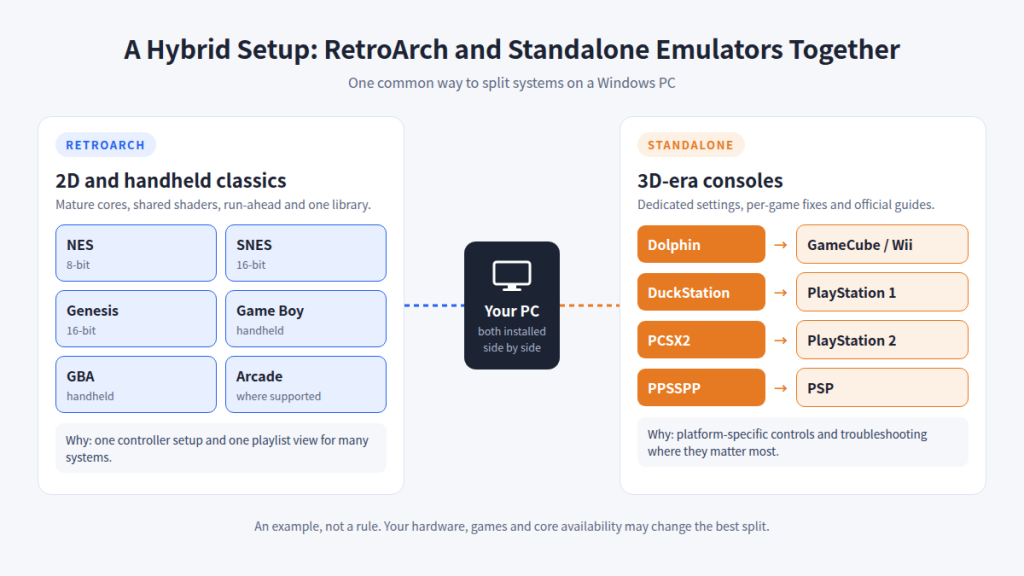
Consider this a guideline, not a hard-and-fast law. Core availability varies; your hardware might prefer one choice, and a single game might perform better in either version you’d usually ignore. The essential issue is to make sure you keep your save files organised. Saves from a core may not be convertible with saves from a standalone emulator.
Legal and Safe Emulation
Emulators are legitimate software in themselves, and RetroArch, Dolphin, PCSX2, and PPSSPP are open-source projects. Legally, it’s about where your games and system files come from.
- Get games through lawful means, such as backups of discs and cartridges you own, or homebrew released for free.
- BIOS and firmware requirements vary: PCSX2 and DuckStation need a console BIOS, while PPSSPP and Dolphin generally don’t. Dump a BIOS from your own hardware.
- Copyright law differs between countries, so check the rules where you live.
- Don’t download commercial games you haven’t properly obtained and don’t circumvent DRM.
Common RetroArch and Standalone Emulator Problems
- Game won’t launch: check file format is supported. Choose the appropriate core in RetroArch.
- Missing BIOS: Check the file name and folder in the docs. RetroArch will look for BIOS files in its system folder.
- Black screen: Change the video driver or graphics backend (Vulkan, Direct3D, or OpenGL) and update your GPU driver.
- Controller not detected: check the connection and then the input driver (XInput, DirectInput, or SDL), then remap it manually.
- Audio crackling: set a higher audio delay, and make sure the game is running at full speed.
- Stuttering: try enabling shader pre-compilation or ubershaders in Dolphin; also try to check VSync and match the refresh rate.
- Low FPS: first lower the internal resolution. If that doesn’t assist your CPU-bound issue, try a lighter core or alternate settings.
- Wrong aspect ratio: adjust it in core options or the emulator first, then RetroArch video settings
- Graphical glitches: try another renderer, per-game patches, or the software renderer.
- Shader performance problems: Try a lighter shader preset or turn shaders off to test.
- Wrong core selected: set a default core for each RetroArch playlist.
- Save state issues: save states may break between versions. Save in the game for long-term progress.
- Game-specific compatibility: Check the emulator’s compatibility list or wiki, and try an alternate core or emulator.
Frequently Asked Questions
Is RetroArch an emulator?
Nope. RetroArch is a front end for the libretro API. Emulation is done through cores, individual modules that you download for each system. Around that, you’re given the menus, controller setup, playlists, shaders, save-state handling, and the rest that RetroArch offers. That’s why one installation of RetroArch can play NES, PS1,1 and PSP games: each uses a separate core.
Is RetroArch better than standalone emulators?
Neither is superior in all instances. RetroArch does a better job covering several systems with one interface and one controller setup. Standalone emulators tend to be better for thorough, system-specific configuration and debugging, especially for 3D period consoles. Most people use RetroArch for the older stuff and standalone emulators for GameCube, PS2, and so on.
Are RetroArch cores the same as standalone emulators?
Not all the time. Some cores are forks or evolved from standalone projects. SwanStation is based on DuckStation; LRPS2 is based on PCSX2. But their versions, settings, features, performance, and compatibility can all vary. A guide written for the standalone emulator may be incompatible with the core.
Does RetroArch reduce performance?
The RetroArch frontend adds virtually no overhead itself. Performance is primarily a function of the core, the game, your hardware, the graphics backend, and your settings. Heavy shaders or run-ahead can chew up performance. Depending on the game, a different core for the same machine can run quicker or slower than a standalone emulator.
Is RetroArch good for beginners?
Yes, for classic 2D systems. Autoconfigurable controller, automatic playlists, and one menu for everything. It’s more difficult when you jump straight into demanding systems, because you’re learning RetroArch and core-specific options at the same time. Beginners focused on one 3D console may find a standalone emulator simpler.
Should I use Dolphin or RetroArch for GameCube?
Standalone Dolphin is the reference choice. It provides full GameCube and Wii setups, support for adapters and Wii Remotes, and the official documentation can be used directly. The RetroArch Dolphin core was updated to a much newer codebase in late 2025, so it’s a reasonable option if you want GameCube in your RetroArch library, but its settings are still different from the standalone Dolphin.
Should I use DuckStation or RetroArch for PS1?
Both function fine. DuckStation standalone features a dedicated PS1 interface with PGXP, upscaling, and per-game settings. You would just use RetroArch with SwanStation, Beetle PSX H,W, or PCSX ReARMed, and get the shaders, run-aheadd and unified library of RetroArch. Compatibility varies by core, so it’s worth testing your specific games. Every option needs a PS1 BIOS.
Should I use PCSX2 or RetroArch for PS2?
For most users, the PCSX2 standalone is the easier choice. It features properties per game, automatic game fixes,xes and thorough troubleshooting tools. If you want PS2 inside RetroArch, then the LRPS2 core is based on PCSX2 and was released in 2025. It works pretty well, but the settings are different than standalone PCSX2. Both need a PS2 BIOS from your own console.
Can RetroArch and standalone emulators be installed together?
Yup. They’re separate programmes, and they don’t conflict. A lot of people use RetroArch for older systems and separate emulators for GameCube, PS1, PS2 and PSP. Keep your game and BIOS folders organised and remember that save files and save states are not always compatible between a core and its standalone counterpart.
Are RetroArch and standalone emulators legal?
RetroArch, Dolphin, PCSX2 and PPSSPP are open source. Emulators are generally legal software. Legality depends on how you get your games and BIOS files. Use legal sources (such as backups of games you own or free homebrew) and check your local copyright restrictions, which vary from country to country.
Final Thoughts
The RetroArch vs standalone emulators choice depends less on which is superior and more on how you play. If you want one library and one controller setup across several systems, RetroArch is hard to top. Usually, if you care most about one console from the 3D era, the emulator built as a standalone for it will give you more control. And if you’re like a lot of PC emulation gamers, you’re likely to use both. If you’re wondering what to play first, here are some retro games worth trying on an emulator.